Getting Started
with Ava
Most transaction management tools make you adapt to their system. Ava adapts to you.
No required format. No mandatory fields. No weeks of setup before you see value.
Upload contracts as-is
Work through first few deals
Ava learns your patterns
Auto-pilot by deal 4
The First 3 Transactions Framework
Think of your first 3 transactions as training Ava, not learning a new tool.
Transaction 1: Teach Ava Your Basics
What to do:
Run a typical transaction through the system. Review every field Ava extracts. Delete fields you don't need. Edit anything that's wrong. Add any fields she missed.
Why it matters:
Ava watches what you keep, delete, and change. This becomes her baseline for how you work.
Transaction 2: Show Ava Variety
What to do:
Pick a different type of deal - if #1 was a purchase, do a listing. Or try a different property type (condo vs. single family). Review and correct just like transaction 1.
Why it matters:
Ava learns that different deals need different approaches. She won't apply purchase rules to a listing.
Transaction 3: Handle an Edge Case
What to do:
Run something unusual - a different brokerage's forms, a different state, or a deal with unique terms. Take extra time reviewing.
Why it matters:
Ava learns to handle exceptions. After this, she's seen enough variety to work independently.
After Transaction 3, Ava will:
Before Your First Transaction
Set up the foundation so Ava has context to learn from.
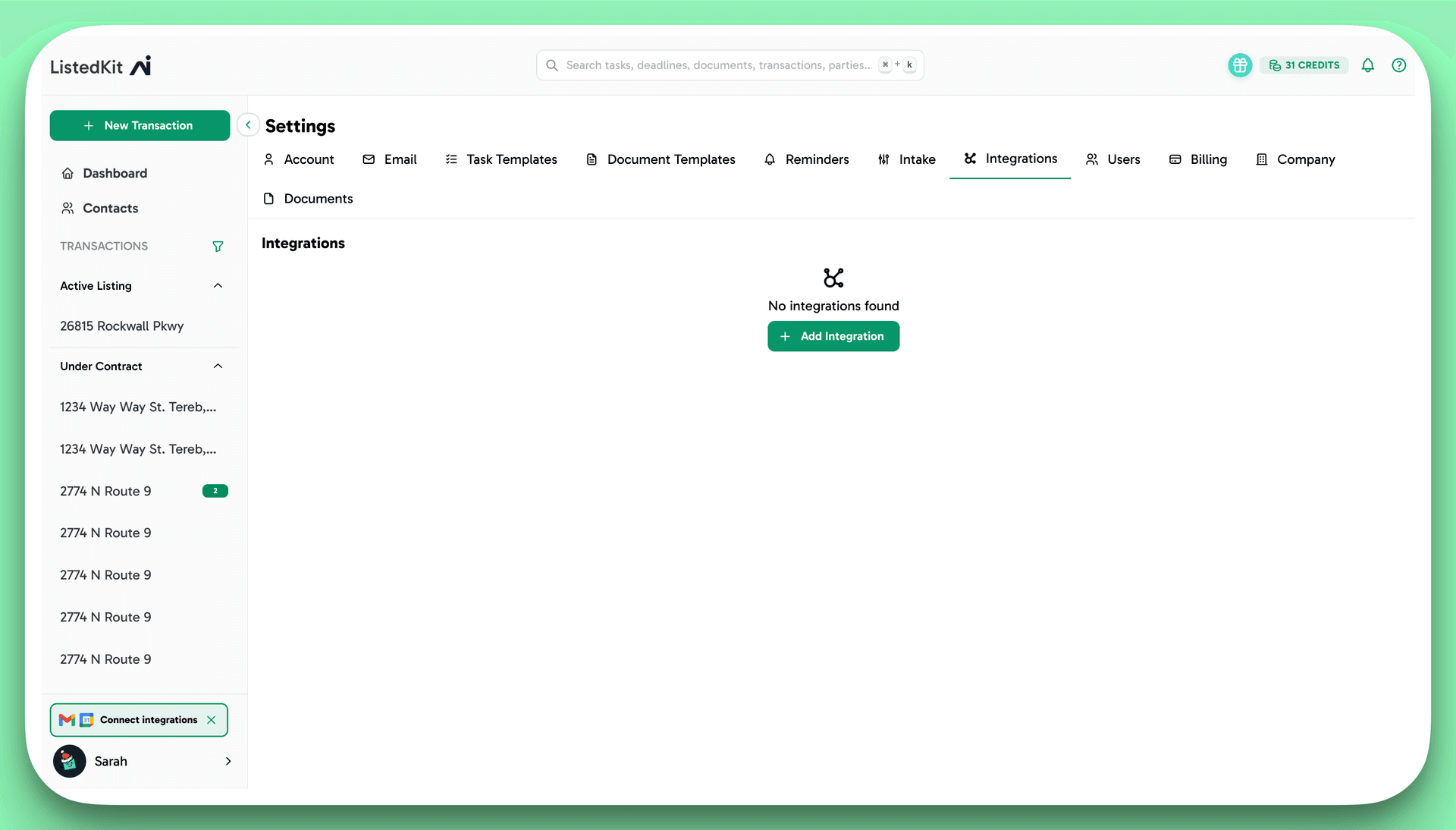
Connect Your Integrations
Settings → Integrations
Connect these to unlock Ava's full power:

Google Calendar
Sync all transaction deadlines and tasks to your calendar in one click

Gmail
Send transaction emails directly from the chat in ListedKit. No copy/paste, no switching tabs
Upload Your Email Templates
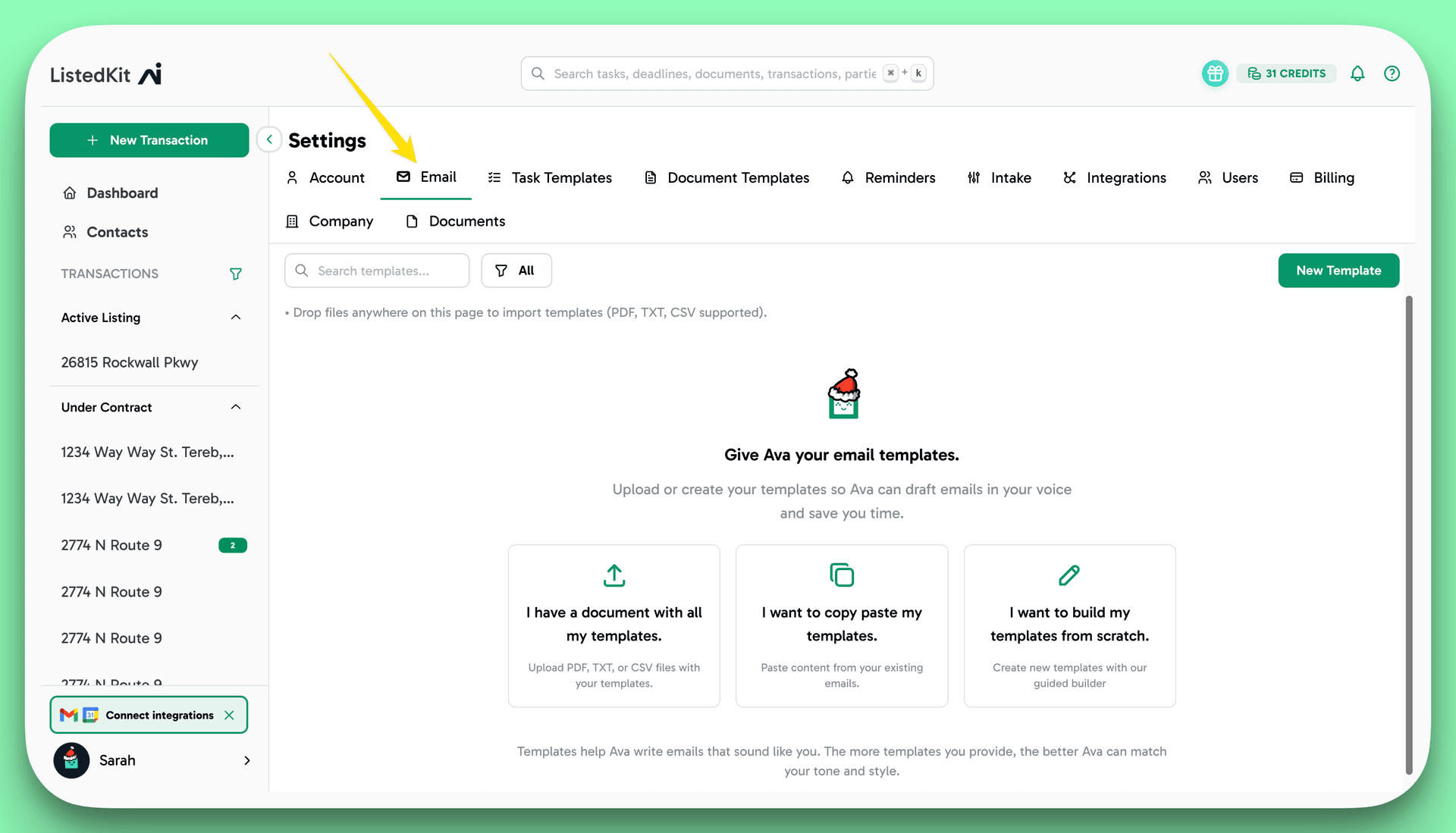
Settings → Emails
Upload or paste your existing templates. Give Ava screenshots, CSV downloads, or PDFs - she'll turn them into templates in seconds.
Critical field: "When should Ava use this template?"
This is how Ava knows which template to auto-draft when an email task is due.
Watch: How to set up email templates
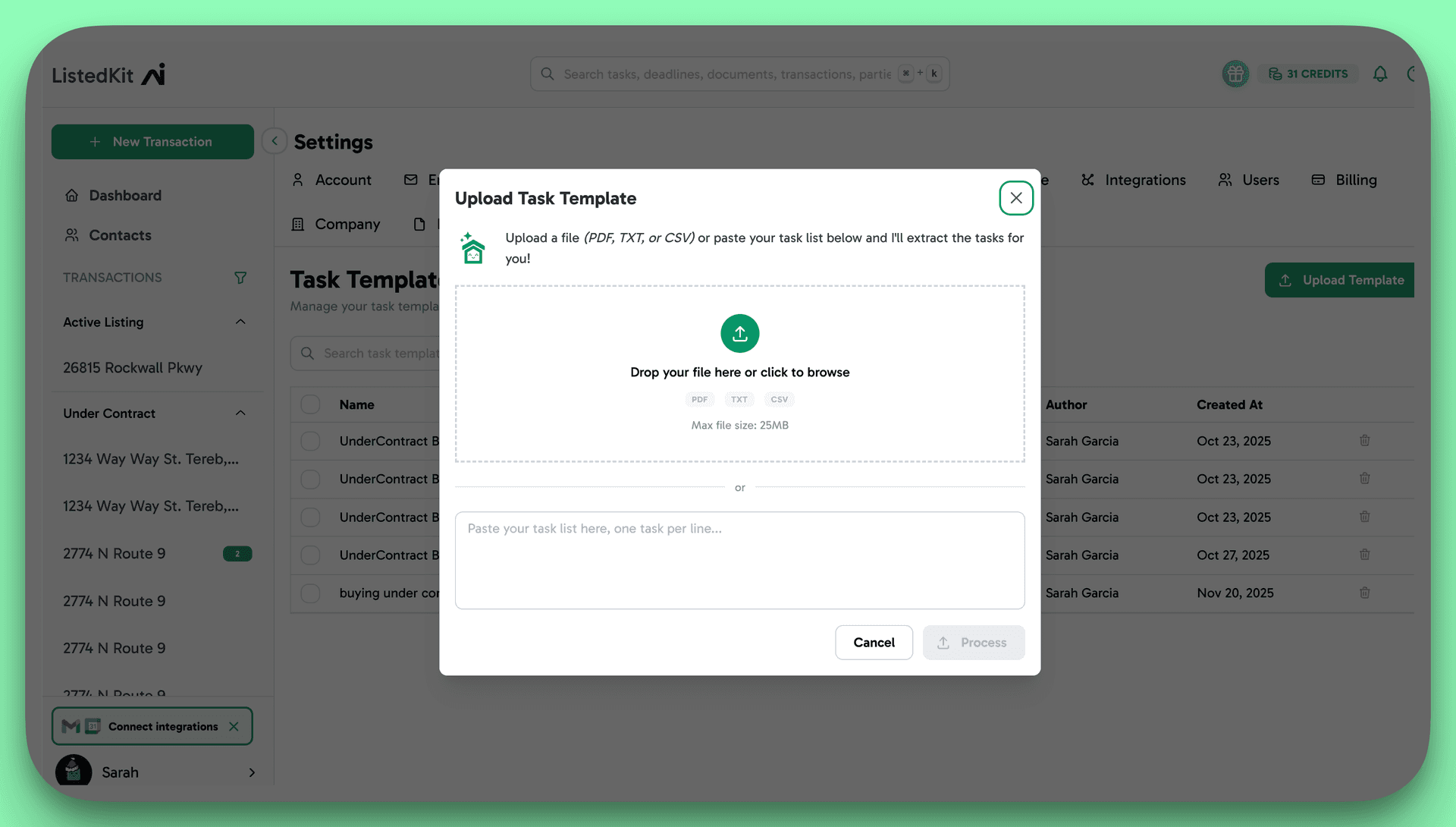
Prepare Your Checklists
Upload during first transaction
Gather your compliance and task checklists. Accepted formats:
Team Setup
Unlocks when you purchase your first credit
Once you purchase your first credit, you can invite your team:
Your First Transaction
This is where you teach Ava how you work. Take your time.
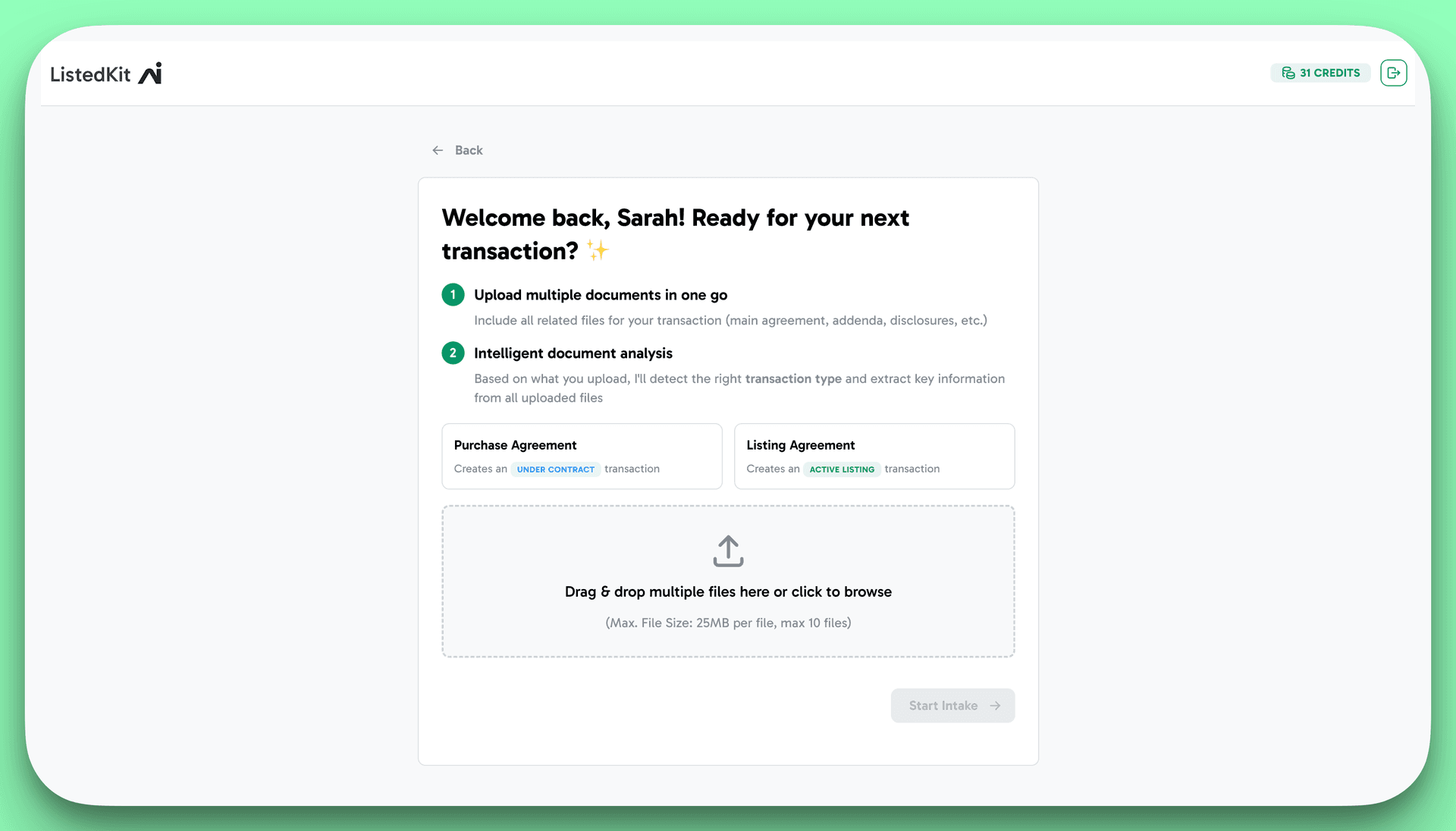
Upload Your Contract
- Click "New Transaction" (top left)
- Upload your purchase agreement OR listing agreement
- Include all addendums, riders, and disclosures
- Don't worry about splitting - upload files as-is
Confirm the Execution Date
Ava extracts the execution date first. This is the foundation for all timeline calculations.
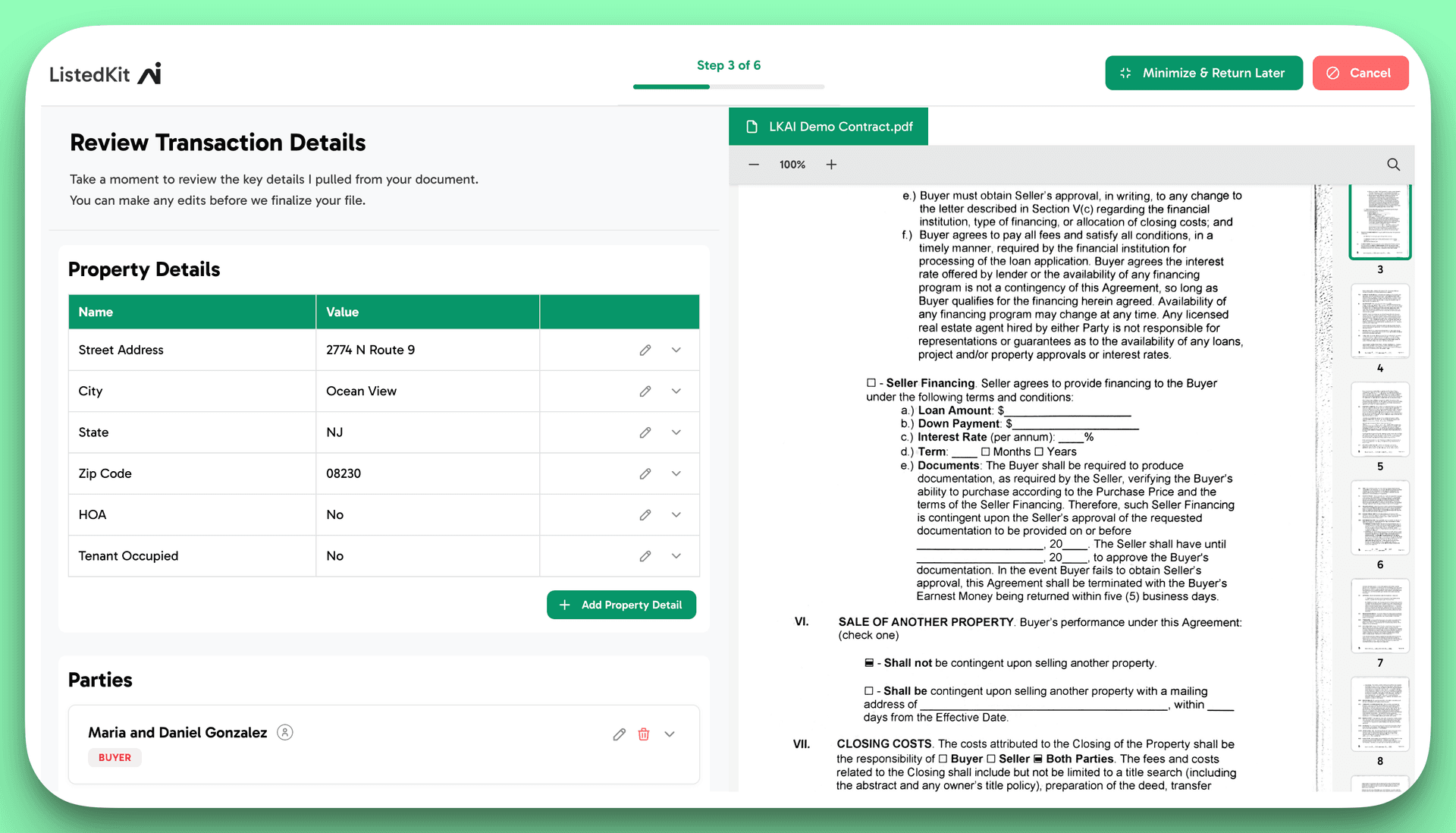
Review Transaction Details
Ava extracts: property address, HOA info, parties, financing details, and contingencies.
Your edits during these first transactions are training data.
Confirm Transaction Timeline
Ava calculates all deadlines, including relative dates like "7 business days before closing."
- • Click on dates to verify source and calculation
- • Pay extra attention to contingency deadlines
- • Edit anything that looks off
Apply Your Compliance Checklist
Generate with Ava
Don't have a checklist? Get a starting point
Upload your template
Have a brokerage-required or proven list
Apply Your Task Template
Same process as the compliance checklist.
Look for the "Email Task" tag: Tasks with this tag mean Ava will auto-draft on the due date.
Open File & Save Templates
Before the transaction opens, Ava may ask to save a new template for similar situations.
Say "Yes" to build your template library - Ava will suggest it for similar transactions
Day-to-Day Management
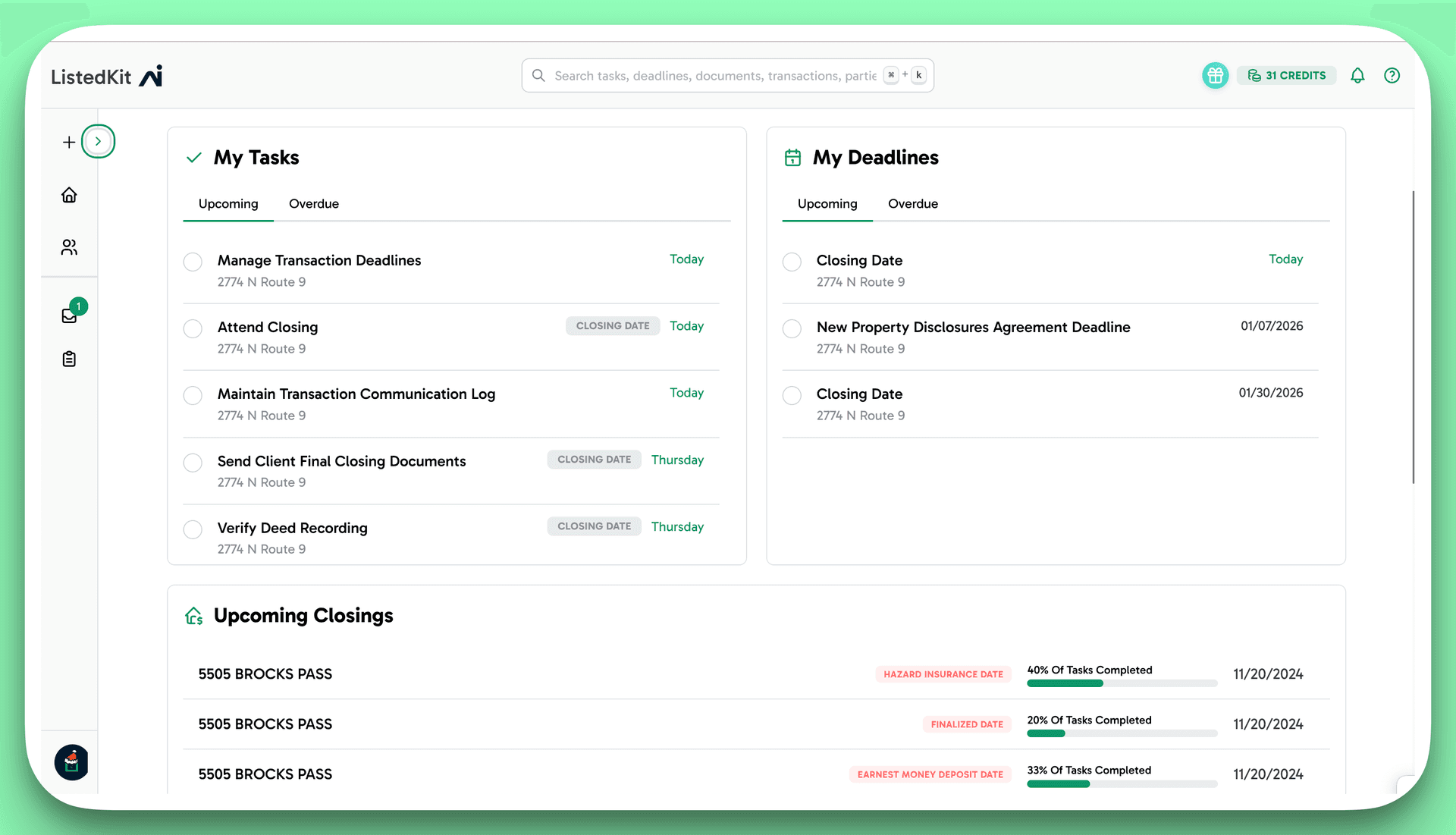
The Dashboard
Your morning snapshot of everything that needs attention:
Transaction View
Ava chat - work with her on the transaction and receive updates
Tasks, Timeline, Deadlines, Details

Keep Uploading Documents
Don't just upload at intake. Add throughout the transaction:
More context = better auto-drafts and compliance scans
Working with Ava
The chat is where the magic happens. Here's what Ava can do:
Housekeeping & Q&A
You say:
"The closing date got delayed by 2 days"
Ava does:
Updates the closing date AND all related deadlines and tasks
You say:
"What's the lockbox number?"
Ava does:
Pulls it from transaction data instantly
You say:
"What was the inspection deadline again?"
Ava does:
Quick answer without digging through documents
Email & Calendar
You say:
"Add the timeline to my calendar"
Ava does:
Syncs ALL deadlines to Google Calendar, invites relevant parties
You say:
"Write an email to the buyer about the earnest money"
Ava does:
Drafts a complete email with names, amounts, dates - ready to send
You say:
"Send the transaction summary to everyone"
Ava does:
Attaches PDF summary and sends to all parties
Compliance Scanning
You say:
Click the shield icon on any document
Ava does:
Checks for missing signatures, date mismatches, required disclosures, and document/data inconsistencies
Generating & Sharing the Transaction Summary
- Go to Details tab in any transaction
- Click "Generate Summary"
- Download PDF OR send through Ava
Tip: Check the box in any email to include an up-to-date summary as a PDF attachment.
Best Practices
Keep Ava Updated
- Upload documents as you receive them
- Run compliance scans before sending to broker
Refine Email Templates
- Edit "when to use" triggers as you learn
- Add new templates as your business evolves
Use Compliance Scans
- 30 seconds now = zero panic on closing day
- Catch errors before they become problems
Leverage Email Tasks
- Check dashboard each morning for drafts
- Review, edit if needed, send
!Common Mistakes to Avoid
Quick Reference
Pricing
Key Locations
Get Help
Book a 1:1 Call
Personalized help from our team
Email Support
hello@listedkit.com
In-App Help
Click ? icon (top right)
Frequently Asked Questions
What is Ava AI and how does it help transaction coordinators?
Ava is an AI transaction assistant built into ListedKit that reads your real estate contracts, extracts key dates and terms, creates task timelines, drafts emails, syncs with Google Calendar, and learns your workflow over time. Unlike traditional TC software, Ava adapts to how you work rather than forcing you to adapt to a rigid system.
How long does it take to set up ListedKit and train Ava?
Initial setup takes about 15-30 minutes to connect your Google integrations and upload templates. Ava learns your preferences through your first 3 transactions - by transaction 4, she works on auto-pilot with minimal corrections needed. Most users see significant time savings within their first week.
Can Ava read any type of real estate contract?
Yes, Ava can read any state's purchase agreement, listing agreement, or addendum in real-time with no pre-setup required. She handles handwritten contracts with high accuracy, follows logic across multiple counteroffers, and calculates complex timelines like '7 business days before closing' automatically.
How does Ava's email integration work?
Once you connect Gmail, Ava can draft and send emails directly from your inbox - no AI branding appears. She uses your uploaded templates and transaction details to create personalized emails. You can give her simple prompts like 'email the buyer about earnest money' and she drafts a complete message with names, amounts, and dates.
What integrations does ListedKit support?
ListedKit currently integrates with Google Calendar for syncing all transaction deadlines and events, and Gmail for sending transaction emails directly from the platform. The calendar integration includes automatic invites to relevant parties for deadlines and events.
How does the compliance scanning feature work?
Click the shield icon on any document and Ava checks for missing signatures, information mismatches against transaction data, and missing information. This 30-second scan helps catch errors before documents go to the broker or closing.
Can multiple team members use ListedKit on the same transactions?
Yes, ListedKit supports team collaboration. Multiple team members can work with Ava simultaneously on the same transactions. The system recognizes repeat contacts and remembers preferences, and supports custom permission levels for assistants, agents, and admins.
You're Ready
Your first transaction is the most important one. Take your time, verify Ava's work, and make edits where needed.By transaction 4, you'll wonder how you ever managed without her.
Questions? Book a 1:1 call or reach out to support.